
Skip to content
Login

Getting Started

5
  • Introduction
  • How to Register on Onigiri Loyalty Platform?
  • How to Login with Phone?
  • How to Login with Email?
  • How to Recover your Account Password?

Cards Creation

8
  • Stamp
  • Multipass
  • Cashback
  • Certificate
  • Coupon
  • Membership
  • Discount
  • Reward

How To Install the Card

5
  • iPhone (iOS)
  • Android
  • PWA Cards on Android
  • Google Pay on Android
  • How to Restore the Card

Customers (CRM)

4
  • Customer Profile
  • Import/export
  • Customer Filters
  • RFM Analysis

Managers

3
  • Add/ Edit/ Delete
  • Manager Profile
  • Statistics

Dashboard

1
  • Dashboard

Feedback Collection

1
  • Feedback collection

Geolocations

2
  • Geolocations
  • How to Access Locations Section?

Push Notifications

16
  • How it Works?
  • iPhone (iOS)
  • Android
  • How long does it take for push messages to be received by our customers?
  • Why aren’t my customers receiving push messages?
  • Push Section
  • Marketing Push
  • Sending messages to all customers
  • Sending messages to a segment of customers
  • Sending message to an individual customer
  • Geo-push
  • Push automation
  • Feedback collection
  • Next visit reminder
  • Birthday congratulation
  • Triggered auto-push

Settings

8
  • API Documentation
  • Suki Card API Access
  • Settings
  • Plan
  • Personal Settings
  • Integrations
  • Webhooks
  • How the Referral System Works

Scaner App

11
  • How Scanner App Works
  • Installation
  • Login in the Scanner App
  • Scanner app – Stamp
  • Scanner app – Multipass
  • Scanner app – Cashback
  • Scanner app – Certificate
  • Scanner app -Coupon
  • Scanner app – Membership
  • Scanner app – Discount
  • Manager Seats

Web Development

1
  • Using the Suki Cards Visual Feedback Tool
View Categories
  • Home
  • Docs
  • Push Notifications
  • Push automation

Push automation

Push automation allows you to automate specific push notifications to be sent to the customers. For instance, if you need to wish a specific customer their birthday, or you need to collect feedback at a specific time interval. Let us learn how to use push automation.

Onigiri Loyalty Platform > Left-Hand Menu > Push

1. Follow the workflow mentioned above to land on the Push notifications screen.

2. From the tabs listed atop the screen, click Push Automation. This takes you to the Push Automation screen.
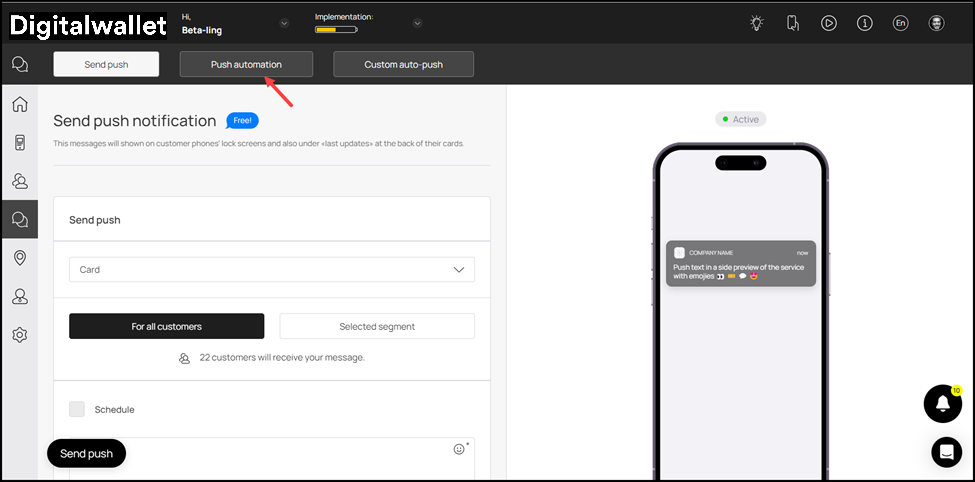
3. Here, use the Card dropdown to select the card for which you want to setup push automation.

4. As a selection is made, all events for push automation are displayed via separate tiles. You can use the toggle button at the top-right corner of each tile to enable/disable the automation for that specific event.

5. Record the message you want to be displayed in the push notification using the Message field.
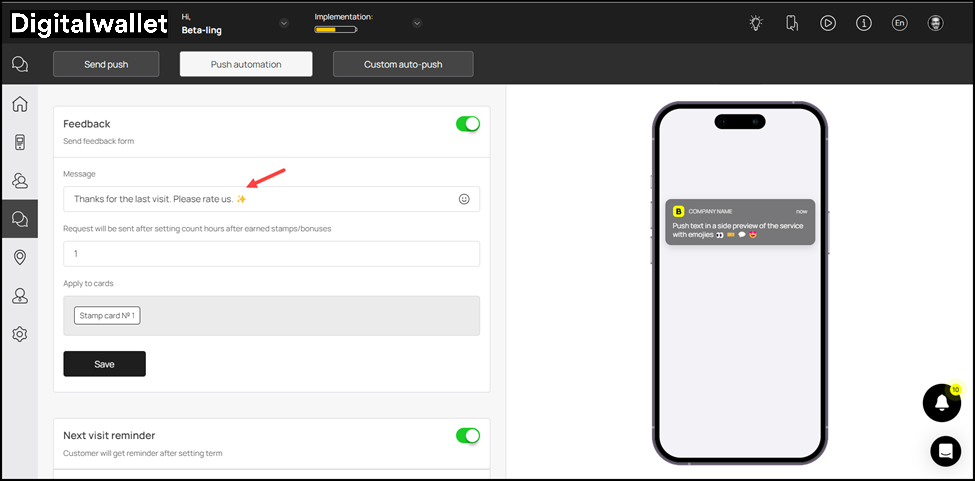
6. Using the next field, you can set the number of hours upon visit after which the push notification for feedback is sent.

7. As the selections are made, click the Save button.

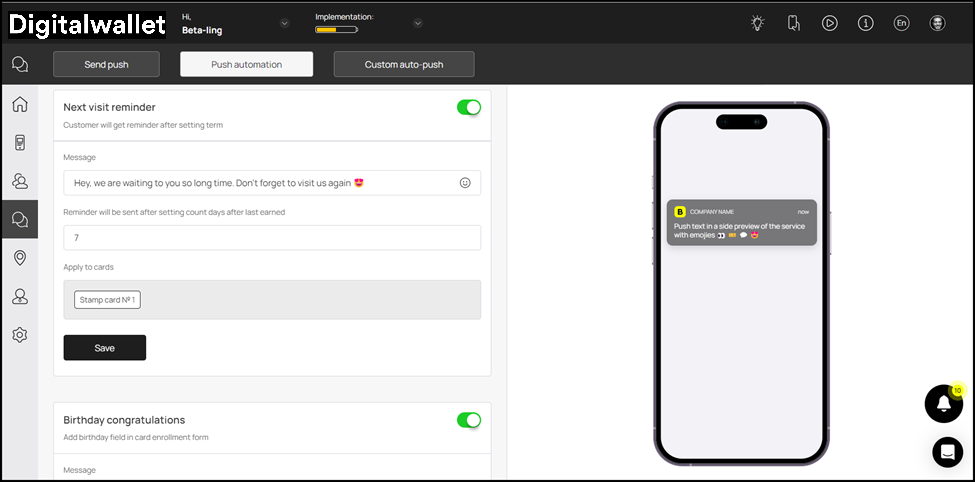
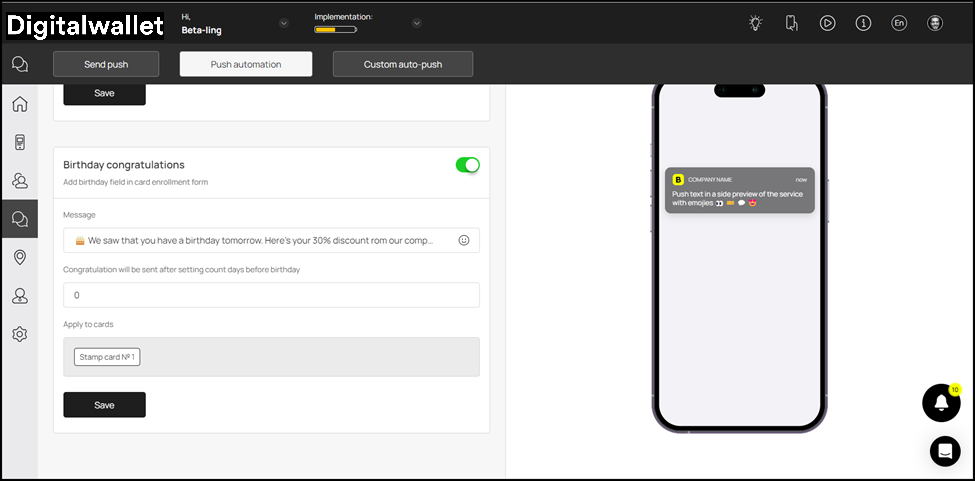
8. The rest of the automations can be setup in a similar manner for Next Visit Reminder and Birthday Congratulations.
Updated on December 12, 2024

What are your Feelings

  • Happy
  • Normal
  • Sad

Share This Article :

  • Facebook
  • X
  • LinkedIn
  • Pinterest
Geo-pushFeedback collection
SUKI CARD

Digital Loyalty for Local Businesses

FacebookInstagramEmail

QUICK LINKS

How It Works
Growth Suite
Case Studies
Web Development
Blog
Demo

SUPPORT

FAQ
Testimonials
Help Center
Affiliate Program

GET STARTED

Start Free Trial · Book a Free Call · Create Account

Works with Apple Wallet & Google Wallet

© 2026 Suki Card. All rights reserved. · Privacy · Terms